
Most Fire TV issues can be resolved by simply restarting the device. If a restart does not help, a software update may be needed. Follow the steps below.
Restarting Your Fire TV
Option 1: Through Settings
- Fire TV Stick/Player: Go to Settings then System then System Restart.
- Fire TV: Go to Settings then System then Power then System Restart.
Option 2: Unplug the Device
- Unplug your Fire TV device from the power source.
- Wait 5 to 10 seconds.
- Plug it back in.
Option 3: Remote Shortcut
- Press and hold the Select button (middle of the remote) and the Play/Pause button simultaneously for 5 seconds.
- Your Fire TV will restart automatically.
Updating Your Fire TV
Fire TV software updates happen automatically in the background, but you can also check for updates manually.
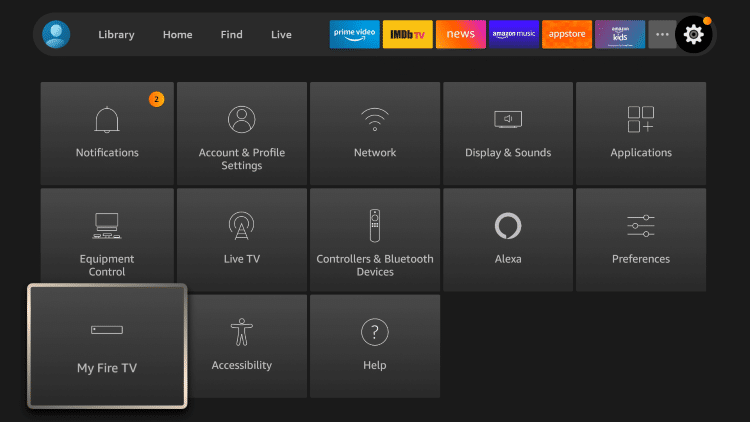
1. Go to Settings then My Fire TV (or Device & Software).
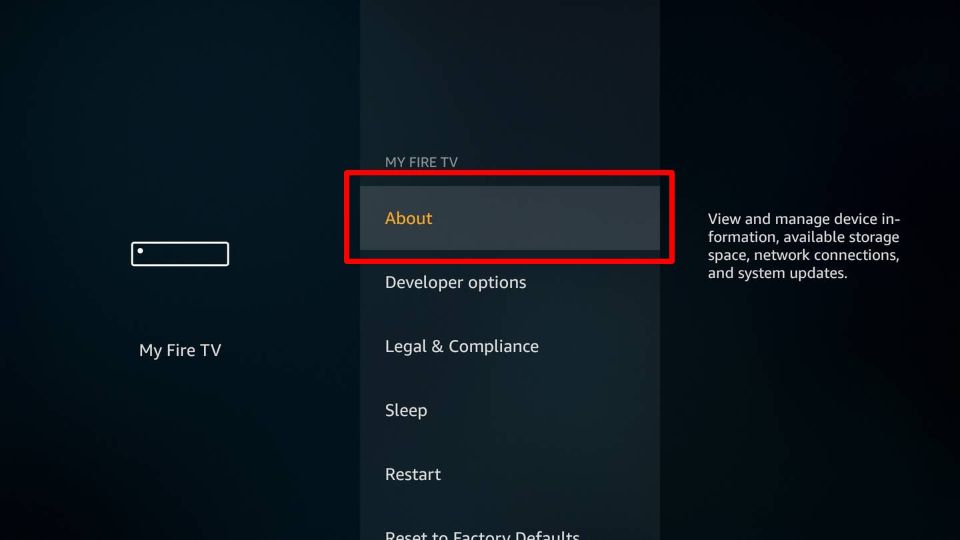
2. Select "About."
3. Select "Check for Updates." If an update is available, select "Install Update."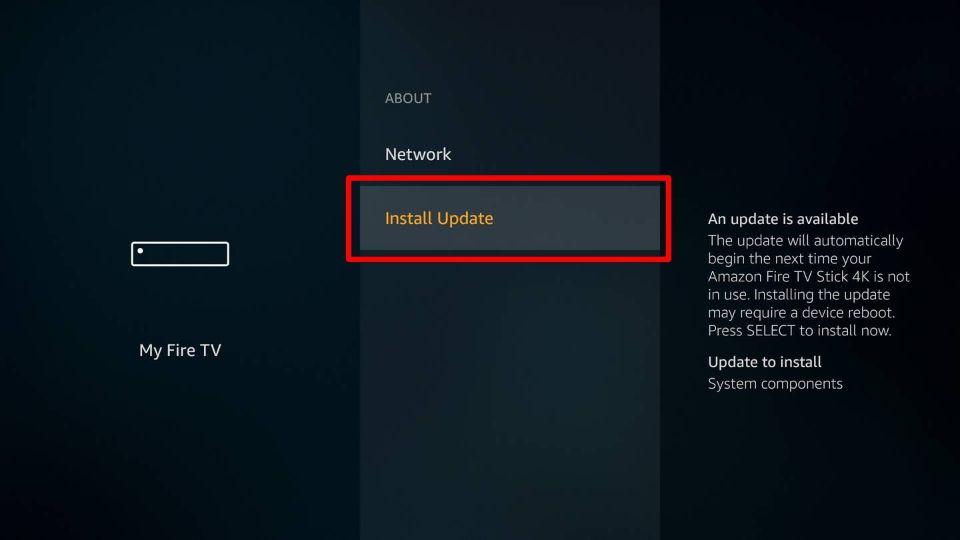
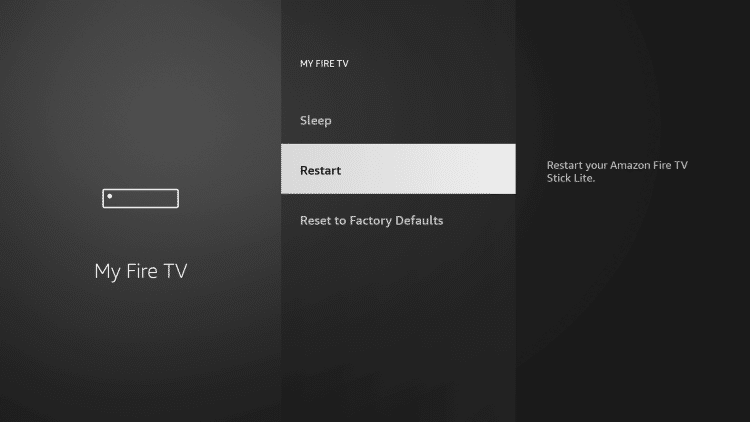
Once the update is installed, restart your Fire TV by going to Settings then My Fire TV then "Restart."